Scheduled Jobs: Making Your App Do Things on Its Own
Reminders, weekly digests and nightly cleanups do not need anyone to click anything. Here is how scheduled jobs work, how to read a cron line, and how to make them safe to rerun.
Key takeaways
- A scheduled job is code that runs at set times without a user: reminders, digests, cleanups, syncs and expirations.
- Schedules are usually written in cron format and run in UTC, so convert your local times and remember daylight saving.
- Design jobs to be safe if they run twice or miss a run: mark what you processed and pick up anything left over.
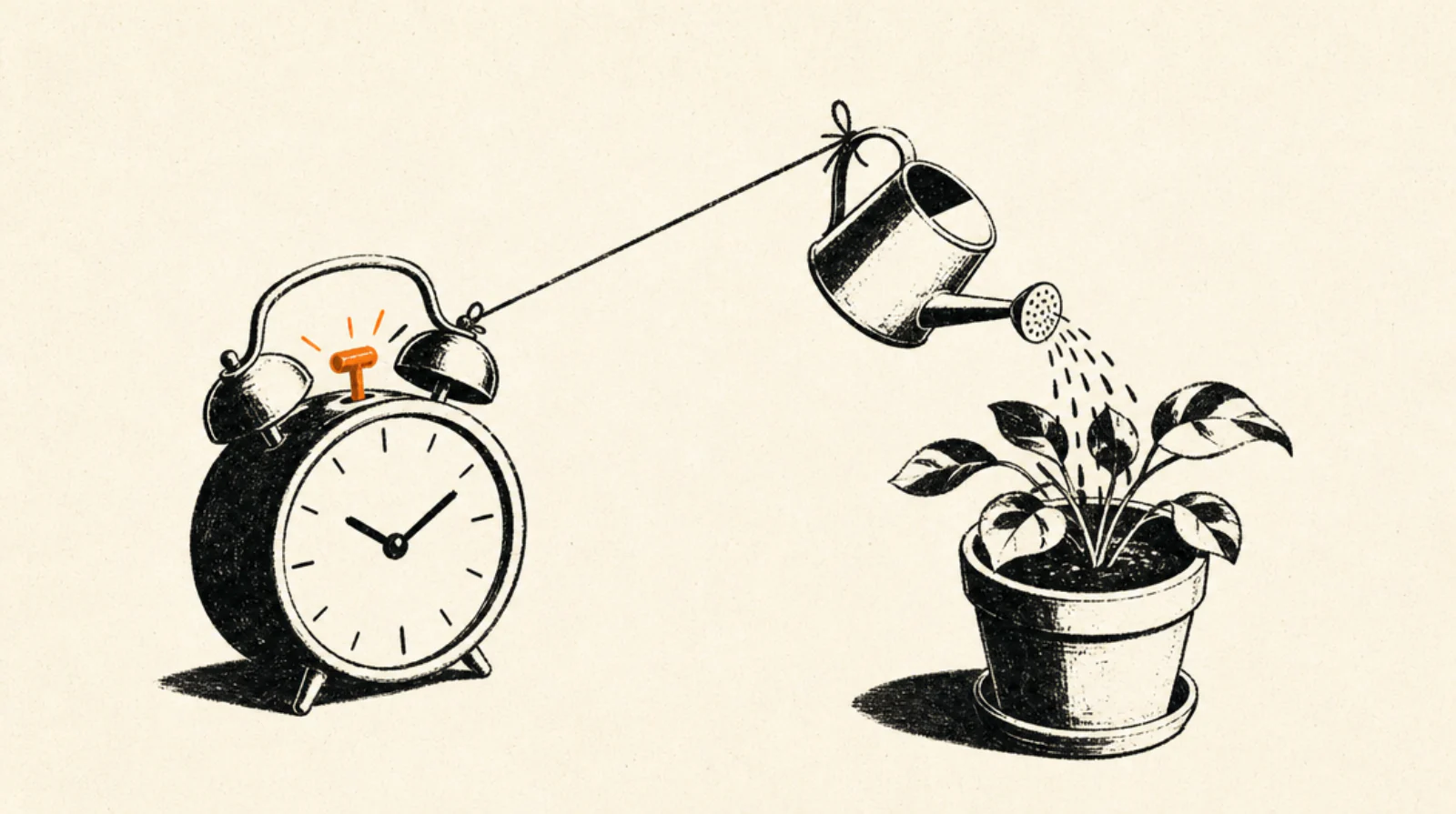
A scheduled job is a task your app runs automatically at set times, with nobody clicking anything: send reminders an hour before appointments, email a digest every Monday, delete expired sessions every night, end trials that ran out. Most platforms describe the schedule in cron format, a compact line like `0 2 * * *` meaning "every day at 02:00". The job itself is usually a short query or function that finds the rows needing attention and acts on them.
What apps use scheduled jobs for
Anything that depends on time passing, rather than on a user doing something, needs a job. Common examples:
- Reminders: a dentist booking app texts patients the day before; a habit tracker nudges people who have not checked in by 8 pm.
- Digests and reports: a weekly summary of new leads to a sales team, a monthly statement to each customer.
- Expirations: mark trials as ended, close auctions at their end time, release unpaid ticket reservations after 15 minutes.
- Cleanup: delete old logs, empty soft-deleted items after 30 days, remove orphaned file uploads.
- Syncs: pull exchange rates every hour, refresh a product feed from a supplier each night.
- Game resets: a daily puzzle switches at midnight, a weekly leaderboard closes on Sunday.
How to read a cron schedule
A standard cron line has five fields separated by spaces: minute, hour, day of month, month, day of week. An asterisk means "every". A few examples make it click:
- `0 2 * * *`: minute 0 of hour 2, every day. Daily at 02:00.
- `*/15 * * * *`: every 15 minutes, all day.
- `0 9 * * 1`: 09:00 every Monday (day of week 1; Sunday is 0).
- `30 18 1 * *`: 18:30 on the first day of every month.
- `0 0 * * 0`: midnight at the start of every Sunday.
Time zones will bite you once
Servers usually run schedules in UTC, the world reference time with no daylight saving. "Every day at 9:00" in UTC is 10:00 in Paris in winter and 11:00 in summer, and 04:00 or 05:00 in New York. Two rules avoid most trouble:
- 01For things that happen to everyone at once (a nightly cleanup), pick a quiet UTC hour and do not worry about local time.
- 02For things that should happen at each user's local time (an 8 am reminder), store each user's time zone, run the job frequently (every 15 minutes, say), and have it pick the users whose local time just crossed 8 am. One schedule then serves every time zone and survives daylight saving changes.
Designing jobs that fail safely
Jobs run when you are asleep, so they must cope with problems on their own. The key idea is being idempotent: running the job twice should do no more harm than running it once.
- Mark what you processed. A reminder job sets `reminder_sent_at` on each booking it emails, and only selects bookings where that column is empty. If it runs twice, nobody gets two emails.
- Select by condition, not by "since last run". "Bookings starting in the next 24 hours with no reminder sent" catches anything a missed run left behind. "Bookings created since the last run" loses them forever.
- Work in batches. Process 500 rows at a time instead of all 80,000, so one run never times out or locks the database for long.
- Log every run. Start time, rows processed, errors. A job that silently stopped three weeks ago is a classic support mystery.
- Never delete without a filter you have tested. Run the selection as a read first and check the count. A cleanup with a typo in its condition can empty a table.
A worked example: trial expiry
A SaaS app gives new teams a 14-day trial. The `teams` table has `plan` ("trial", "pro", "expired") and `trial_ends_at`. Here is the job, described in plain steps:
- 01Every hour, find teams where `plan` is "trial" and `trial_ends_at` is in the past.
- 02For each one, set `plan` to "expired" and record the time.
- 03Queue a "your trial ended" email for the team owner, once.
- 04Three days before `trial_ends_at`, a second job sends a heads-up email and sets `trial_warning_sent_at` so it never repeats.
The app's screens and the database rules read `plan`, so the moment the job flips it, premium features close without any extra code. Payment webhooks, explained in accepting payments, flip it back to "pro" when someone pays.
Jobs, triggers and webhooks: which one?
Scheduled jobs are one of three ways an app does things without a click. Picking the right one keeps the app simple:
- A scheduled job runs because of time: "every night", "every 15 minutes", "Mondays at 9". Use it when nothing happens to start the work except the clock.
- A database trigger runs because a row changed: when an order is inserted, decrease stock; when a profile is deleted, clean up its files. It runs immediately, inside the database.
- A webhook runs because another service told you something: a payment succeeded, an email bounced. Your server function receives the event and updates your data.
A common mistake is using a job where a trigger fits. If "send a welcome email" waits for a job that runs every hour, new users wait an hour for a message they expect in seconds. If the reminder for tomorrow's appointment is fired by a trigger at booking time, it arrives days early. Ask what starts the work, and the answer names the tool.
Scheduled jobs in a Startbase app
In Startbase Cloud, jobs are scheduled tasks that run inside your database on `pg_cron`, a Postgres extension. Describe what should happen and when, for example "every night at 2am, delete sessions older than 30 days", and the agent writes the job, turning on `pg_cron` first if your database needs it. The Jobs section of the Backend tab lists each job with its schedule shown in plain English, in UTC, lets you switch jobs off and on without losing the schedule, and shows run history with each run's status and message. Each job has Edit with the agent, and owners and admins can delete a job with its history. Details in the Jobs docs.
Add scheduled jobs to my habit tracker. Every 15 minutes, find users whose local time just passed their chosen reminder time and who have not checked in today, and send them one reminder email (mark it so it never sends twice in a day). Every Sunday at 18:00 UTC, email each user a weekly summary of their streaks. Every night, delete check-in drafts older than 7 days. Log each run.
Jobs that send email need a sender set up first (sending emails from your app), and jobs that call outside services should do it through a server function so keys stay out of reach. If any of this is new, what a backend is gives the map.
Frequently asked questions
What is a cron job?
A task scheduled to run automatically at times described by a cron expression, such as 0 2 * * * for every day at 02:00. The name comes from cron, the classic Unix scheduler.
Do scheduled jobs run when nobody is using the app?
Yes, that is their point. They run on the server on schedule, whether or not anyone has the app open. A backend that is paused for inactivity will not run them until it wakes, so check how your host handles idle projects.
Why did my job run at the wrong hour?
Almost always time zones. Schedules usually run in UTC. Convert your local time to UTC, and for per-user local times, run frequently and select users by their own time zone.
How often can a scheduled job run?
Cron can go down to every minute. Run only as often as the task needs, and make sure each run finishes well before the next begins.