Touch Controls for Mobile Web Games
A thumb on glass is not a gamepad. Here is how to choose between virtual sticks, taps and gestures, where to put them, and how to make them feel responsive in a browser.
Key takeaways
- Design the game for touch first: the best mobile controls remove inputs rather than imitate a gamepad.
- Use floating joysticks that appear where the thumb lands, and buttons of at least 44 to 48 points with generous hit areas.
- Keep controls in the bottom corners, out from under the action, and away from the screen edges the system uses for gestures.
- Respond on touch start, not on release, and stop the browser from zooming, scrolling and selecting during play.
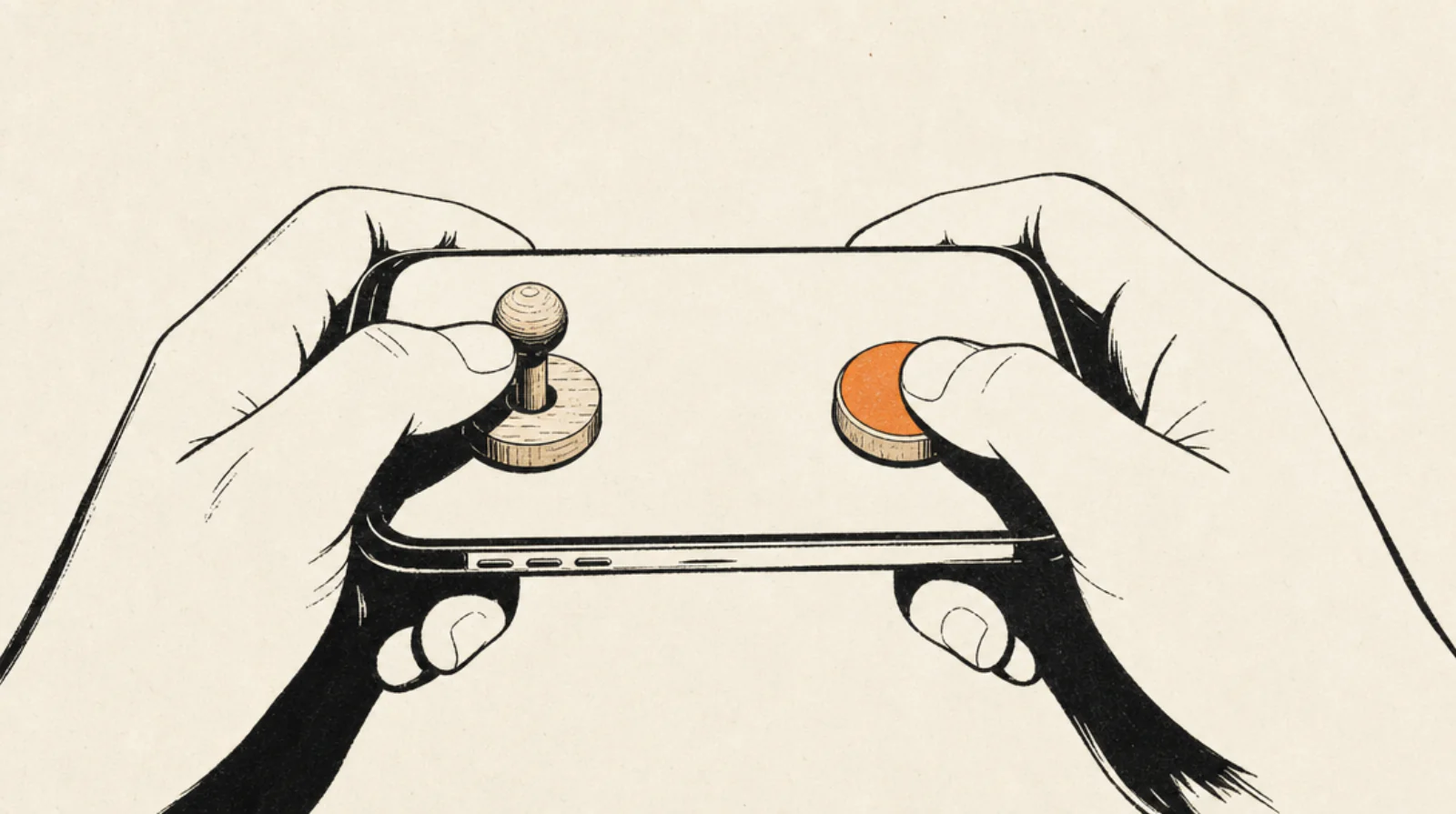
Good touch controls for a mobile web game are simple, large and placed where thumbs naturally rest. For games that need free movement, a floating virtual joystick on the left half of the screen with one or two big action buttons on the right works well. For most casual games, taps, swipes and drags on the play area itself feel better than any on-screen stick. Whichever you choose, respond on touch start, size targets for thumbs rather than mouse pointers, and stop the browser from zooming or scrolling while people play. The snake game guide shows swipe controls for a grid game.
Start by removing inputs
The biggest mistake is porting a keyboard or gamepad layout to the screen. Glass gives no tactile feedback, thumbs cover what they touch, and players cannot feel where a button is without looking. The most successful phone games redesigned the input instead:
- Auto-run: the character runs on its own and the player only jumps, which turned platformers into a phone genre.
- Auto-fire: shooters where the ship fires constantly and the player only steers.
- Lane swipes: endless runners that reduce movement to left, right, jump and slide.
- Drag to aim, release to fire: slingshot and golf games where one gesture carries direction and power.
- Tap the world: tap where you want to go, or tap the enemy to attack it.
Ask how many simultaneous inputs your game truly needs. If the answer is "move in any direction and press two buttons at the same time", you are designing a gamepad game, which can work, but needs the most care. Our core game loop guide helps you pick the verbs that matter.
Virtual sticks versus gestures
When a virtual joystick fits
Twin-stick shooters, top-down action and 3D exploration usually need analog movement. Make the stick work for thumbs:
- Floating, not fixed: the stick appears where the thumb first touches anywhere in the left zone. Fixed sticks fail because players drift off them without noticing.
- Size: a base radius of roughly 50 to 70 points, with the knob limited to that radius.
- Dead zone: ignore the first 10 to 15 percent of travel so resting thumbs do not cause drift.
- Follow: if the thumb drags beyond the base, move the base along with it instead of clamping hard.
- Ghost visibility: show the stick faintly where it last was, so new players know it exists, and fully while touching.
When gestures fit
Swipes and taps fit games with discrete actions: lane changes, jumps, slicing, aiming. Rules for gestures:
- Distance thresholds: treat a touch as a swipe after about 20 to 40 points of movement; anything less is a tap.
- Trigger mid-gesture: fire the swipe action as soon as the threshold is crossed, not when the finger lifts. Waiting for release adds noticeable delay.
- Directions by angle: classify swipes into 4 directions with generous 90 degree sectors. Diagonal confusion is the most common complaint in swipe games.
- Avoid ambiguous pairs: double tap versus single tap forces a delay to tell them apart. Avoid needing both.
Thumb zones and layout
Held sideways with two hands, thumbs comfortably cover arcs in the bottom left and bottom right corners. The top middle is the hardest place to reach. Held upright with one hand, the bottom third of the screen is easy and the top corners are hard. Layout rules that follow:
- Movement on the left, actions on the right in landscape. Most players are used to it.
- Primary action largest and closest to the resting thumb, secondary actions arranged in an arc around it.
- Keep the action above the thumbs: the player character and threats should rarely be in the bottom corners, where thumbs hide them. Position the camera so the character sits slightly above center.
- HUD at the top: score, health and timer go where thumbs never are. Pause goes in a top corner, small enough not to be hit by accident.
- Respect safe areas: notches, rounded corners and the home indicator cover parts of the screen. Keep controls out of those areas and away from the bottom edge, where an upward swipe may trigger the system.
In Startbase games, the joystick and touch buttons are elements in the UI Editor. They show on touch screens only unless you change their "Shows when" setting, you move and resize them like anything else, and the stage shades the safe area where a notch, corners or home bar cover the screen. You can also fix the layout separately for a phone held upright with the Portrait frame. The one-tap arcade guide shows how far a single input can go.
Sizes, hit areas and feedback
- Minimum size: Apple recommends touch targets of at least 44 by 44 points and Android guidance uses 48 by 48 density-independent pixels. Game buttons that are pressed in a hurry should be bigger, often 60 to 80 points.
- Hit area larger than the art: let the touchable area extend 10 to 20 points past the visible button.
- Visual press state: scale or darken a button the moment it is touched, so the player knows the press registered.
- Haptics where supported: a short vibration on important presses helps, but browser support varies (iPhone Safari has historically not exposed the web vibration API), so never rely on it.
- Multitouch: track each finger separately. A common bug is a jump button that stops working while the other thumb holds the joystick.
Browser details that make or break touch
A browser is not built for games by default. Double tap zooms, long press opens menus and selects text, and drags scroll the page. Fix these for the game canvas:
- Set the CSS touch-action of the play area to none, so the browser does not pan or zoom.
- Use pointer events and track pointers by id for multitouch.
- Disable text selection and the long-press callout on the game.
- Prevent pull-to-refresh and overscroll on the page.
- Handle the game losing focus (a notification, a call) by pausing and clearing all held inputs, or the character keeps running.
Startbase games are built to feel native on phones out of the box: no page zoom, text selection or pop-up menus over play, as the games template docs describe. Test on a real phone anyway, since emulated touch in a desktop browser hides problems with thumbs covering the screen. PWA vs native app covers how an installed web game differs from a store app.
A brief for touch controls
Add touch controls to my top-down shooter for phones held sideways. Left half: a floating joystick that appears where the thumb lands, base radius 60 pt, 12 percent dead zone, base follows the thumb if dragged past the edge. Right side: auto-aim at the nearest enemy and a large fire button (72 pt, hit area 16 pt bigger than the art) plus a smaller dash button in an arc above it. Respond on touch start. Keep the player slightly above center so thumbs never cover it, keep controls inside the safe area, show the controls on touch screens only, and pause and release all inputs when the page loses focus.
Common touch control mistakes
- Fixed joysticks that the thumb slides off.
- Tiny buttons sized for a mouse.
- Acting on release, which adds delay to every input.
- Controls over the action, so players cannot see what they are dodging.
- Requiring precise timing and precise position at once. Touch is good at one or the other. For rhythm-style timing, see our notes in the accessibility guide on generous timing windows.
Frequently asked questions
Should my mobile game use a virtual joystick?
Only if it needs free analog movement, like a twin-stick shooter or 3D exploration. Many casual games feel better with taps, swipes or drags on the play area. If you use a joystick, make it floating so it appears where the thumb lands.
How big should touch buttons be in a game?
Platform guidelines recommend at least 44 to 48 points for any touch target. Game buttons pressed in a hurry work better at 60 to 80 points, with a touchable area that extends beyond the visible art.
How do I stop the browser from zooming or scrolling during my web game?
Set touch-action to none on the game area, use pointer events, disable text selection and long-press menus, and prevent overscroll on the page. Startbase games ship with these behaviors handled for play.